Twin Ribbon Collar
A free, full-permission collar with twin bows and a language you can make your own
Twin bows, soft lace and a silver bell. Twin Ribbon Collar is a free gift with a matching color HUD and editable language notecards. Start in English. Install the included Simplified Chinese from Settings > Languages, or edit Text.alt to use your own translation. Install it once; later starts reuse the valid cache.
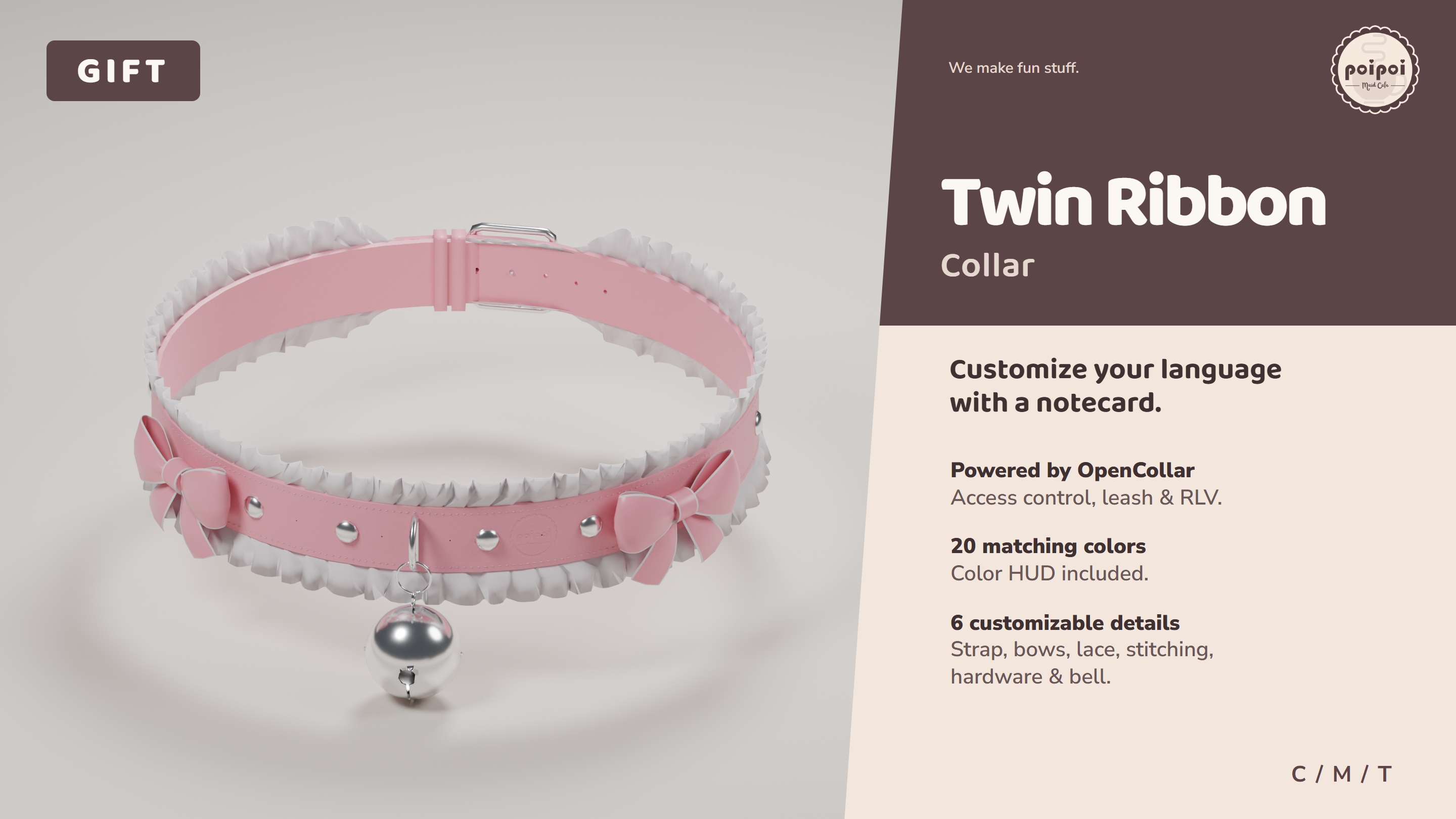
- Powered by OpenCollar
- An open-source version of OpenCollar, modified by poipoi, with access control, leashing and RLV features.
- Customize Your Language
- English by default. Customize Text.alt, then install it from Settings > Languages before switching. A successful installation is cached for later starts.
- Full-Permission Gift
- Free, with Copy, Modify and Transfer permissions.
- 20 Matching Colors
- The included color HUD uses the Maid Cafe palette, so your collar can match your outfit.
- 6 Customizable Details
- Recolor the strap, bows, lace, stitching, hardware and bell separately. The color HUD preserves the materials and their detail.
How it works
Features
Twin Ribbon Collar is a collar with two side bows, upper and lower lace trim, stitching, hardware and a bell. The included color HUD recolors these six parts separately.
OpenCollar (OC)
This collar uses an open-source version of OpenCollar (OC), modified by poipoi. It provides access control, leashing, RLV, and other collar features. For detailed OC instructions, visit the official website: https://opencollar.cc/
The rest of this guide focuses on this collar's two-language setup: editing translations and switching the display language.
Settings
The two language cards
- Text.en: the English source and reference. Keep it unchanged.
- Text.alt: the replaceable additional language, supplied in Simplified Chinese. Replace its text to use another language.
- The collar uses English plus one additional language at a time. Replacing Text.alt replaces that language; it does not add a third language.
Switch the display language
- Touch the collar to open its main menu.
- English is the default. Open Settings > Languages.
- Click Install Language and wait for the success message. English menus remain available while it loads.
- Successful installation keeps English selected. Reopen Settings > Languages and click 🌐 简体中文 to switch to the supplied Chinese translation.
- To return to English from Chinese, open 设置 > 语言设置 and click 🌐 EN. With a custom translation, the language button shows the name you entered in lang.name.
Successful installation is cached. Later starts reuse the valid cache without loading the card again and keep your selected language. Startup does not automatically install a second language.
Editing, replacing or removing Text.alt returns the collar to English and disables the second language. With the complete new card in place, open Settings > Languages > Install Language to install it again. If the installed card is unchanged, you can also choose Reinstall Language (重装第二语言 in Chinese) to reinstall it manually.
The owner or wearer can change this setting. It applies to the whole collar, not separately to each person using it.
Create your translation
- Back up the collar in your inventory and keep a copy of the original Text.alt.
- Rez the collar where rezzing is allowed. Right-click, choose Edit, and open Contents. The cards belong in the collar body, not the color HUD.
- Open Text.en and copy all its text into a new notecard as your translation template.
- Translate only the text after the first equals sign on each line. Keep the key before it unchanged. Keep each record on one physical line.
- Find lang.name=EN and replace EN with a short display name, for example lang.name=French. Edit the existing entry; do not add a duplicate.
- Name the completed card exactly Text.alt. Move the original Text.alt out of the collar and keep it as a backup, then insert the new card. A card named Text.alt 1 will not replace it.
- Save, then open Settings > Languages and click Install Language. Wait for success before switching. No script edits or manual reset are needed.
You can also edit Text.alt directly in the collar contents. After saving later edits, reinstall the language from Settings > Languages.
What to preserve
- Keep keys, equals signs, and placeholders such as {1} and {2}. You may move placeholders to fit the language, but do not change, omit, or add numbered placeholders.
- Keep substitution tokens such as %WEARERNAME% and %NOACCESS%.
- Preserve emoji, links, commands, and asset names.
- Keep literal \n sequences for line breaks instead of splitting a record into separate lines. Preserve escaped quotes in the source too.
- Leave Text.buttons unchanged. It maps button labels to actions.
- Avoid duplicate keys. For entries you have not translated, keep the English text. A complete matching key set is required for installation.
Example:
addons.addon_connected=External device connected: {1}
Keep addons.addon_connected and {1}; translate only the message text.
Quick reminders
- Keep labels short: btn. values allow 20 UTF-8 bytes; lang.name allows 19. Characters may use multiple bytes.
- Failed or interrupted installation leaves English available. Keep Text.en; correct Text.alt and retry.
- These cards control collar menus and notifications, not text printed on the color HUD image.