
What is Redelivery and how do I use it? How do I get the latest version?
If a purchased item is lost, deleted or needs an update, you can get it sent again from the store or your orders without paying again.
When to use it
- You clicked "Discard" when buying and cannot find the item in the trash.
- The item was deleted or broken and you no longer have the original package.
- The creator released a new version and you want a fresh copy.
Most purchased items can be redelivered, with no extra payment.
How to do it
It depends on where you bought it.
Bought on Marketplace
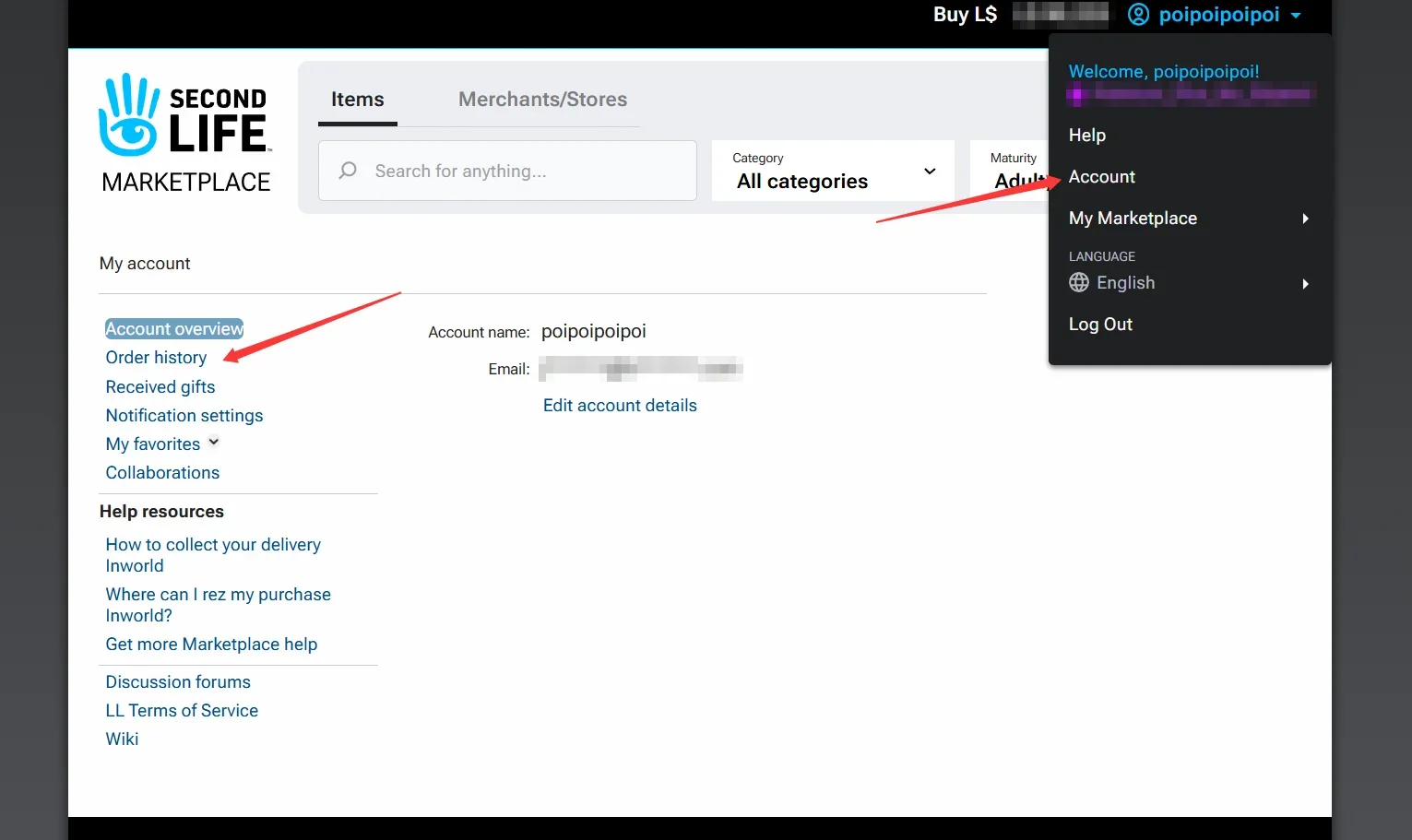
- Log in to Marketplace, click your username at the top right, choose Account, then click Order history on the left.
- Find the order and click Redeliver item under the product.
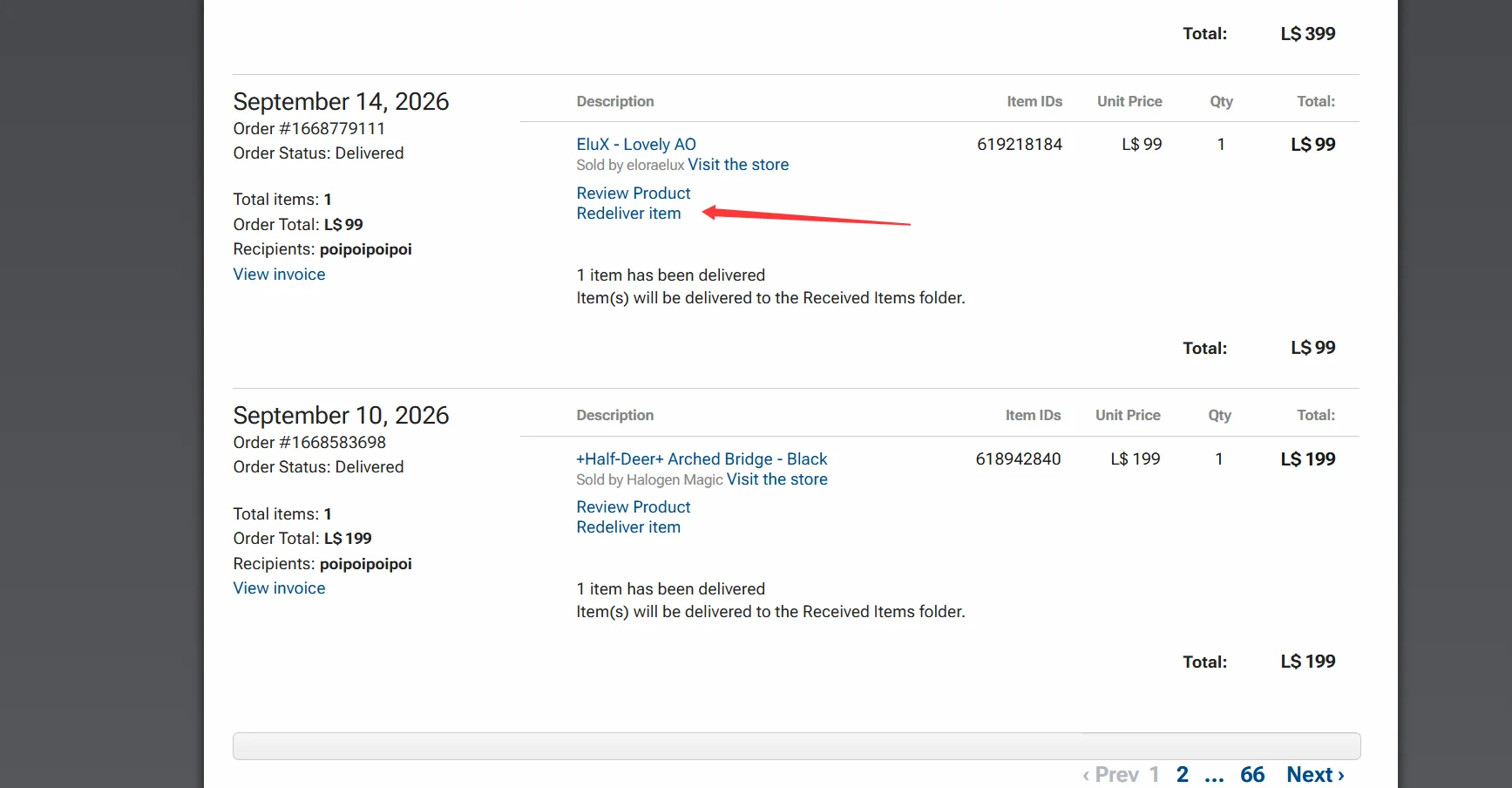
- The item is sent again to the Received Items folder in your inventory.
If you have many orders, page through the list to find it.
Bought in an in-world store
Example: a store using the Casper Vend sales system.
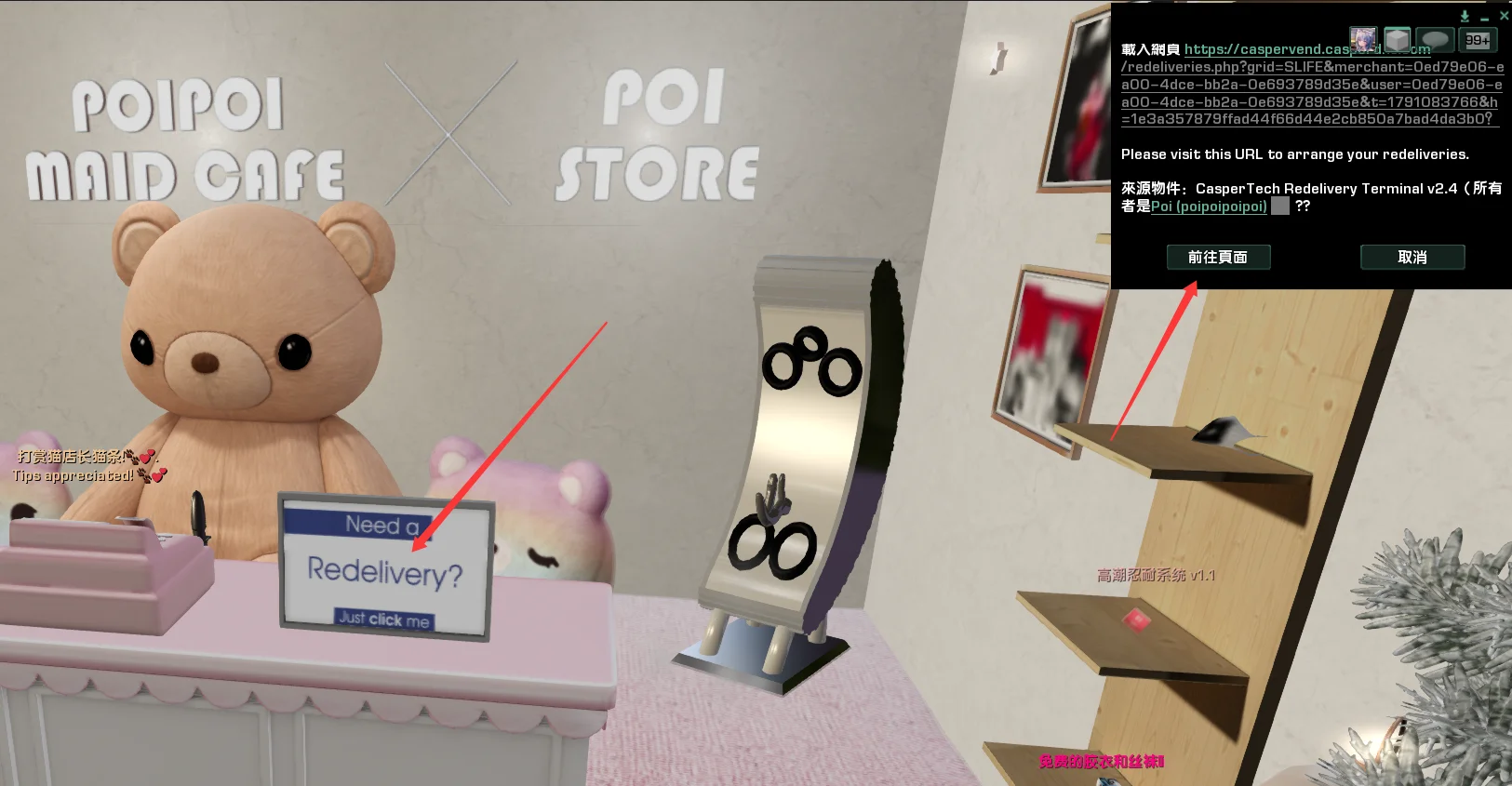
Go back to the store and click the redelivery terminal that says Need a Redelivery?.
A prompt asks to load a web page. Click the left button (Go to page).
- The page has two tabs: From this store and From other stores. Pick the right tab, find the product and click the blue Deliver.
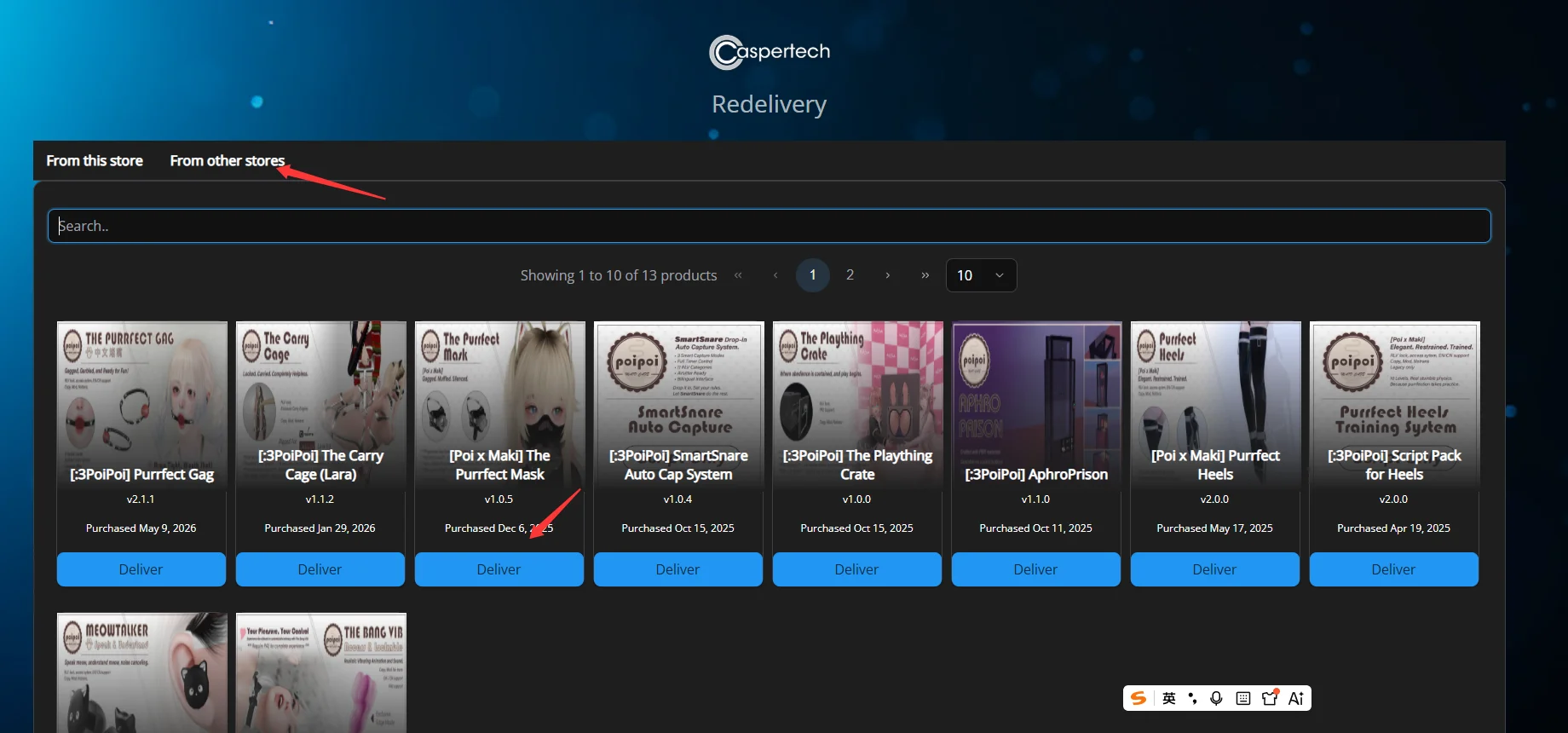
Items bought at other stores can also be redelivered from any store using Casper, under From other stores. No need to go back to the original store. Use the search box or page through if the list is long.
Stores with their own method
Some stores have no standard Redelivery and use their own system.
- Go back to the store and look for a delivery machine with a Redelivery sign. Click it and follow the prompts.
- If there is none, the only option is to contact the store owner or a manager and ask them to resend it.
Also check the product manual or the store notice. Some stores explain their method there.
Look first
Before redelivery, check your inventory Trash and the Recent tab. The item may still be there. It also helps to keep the original package from every purchase.
Before replacing your copy
Keep the old copy until the new one is unpacked and working. Custom settings may not carry to a fresh copy, so note them first.
Never move scripts between old and new copies unless the product manual explicitly tells you to.